

In a world where every moment is a potential masterpiece, knowing how to cut videos on an iPhone can turn your amateur clips into cinematic gold. Whether it’s trimming that awkward pause from your cousin’s wedding speech or snipping out the part where your dog steals the spotlight, mastering this skill can save your friends from endless scrolling.
Overview of Video Cutting on iPhone
Video cutting on an iPhone offers users a straightforward way to edit and enhance footage. Extensive features in the built-in Photos app facilitate quick trims and cuts. Users can easily select a video from their library and access editing tools.
To start cutting a video, one needs to open the Photos app and choose a clip. Tapping “Edit” reveals a timeline beneath the video. The yellow sliders at each end of the timeline allow for precise adjustments. This interface enables users to preview changes before finalizing or saving the edits.
Another option involves using third-party apps available on the App Store. Apps like iMovie and InShot provide advanced editing features for those seeking more options. These tools allow users to trim, split, or combine clips effortlessly. Familiarity with app interfaces enhances the editing experience.
It’s essential to save edits in the desired format after cutting. Choosing to save a video can include options to keep original files untouched. This approach preserves original footage while allowing for modified versions. Specific settings are often available for exporting videos tailored to different platforms.
Using iPhone’s video cutting features can significantly improve personal video projects. Trimming unnecessary sections not only enhances aesthetics but also maintains viewer engagement. Mastery of these tools fosters creativity and transforms raw clips into polished content for sharing with others.
Built-In Video Editing Tools
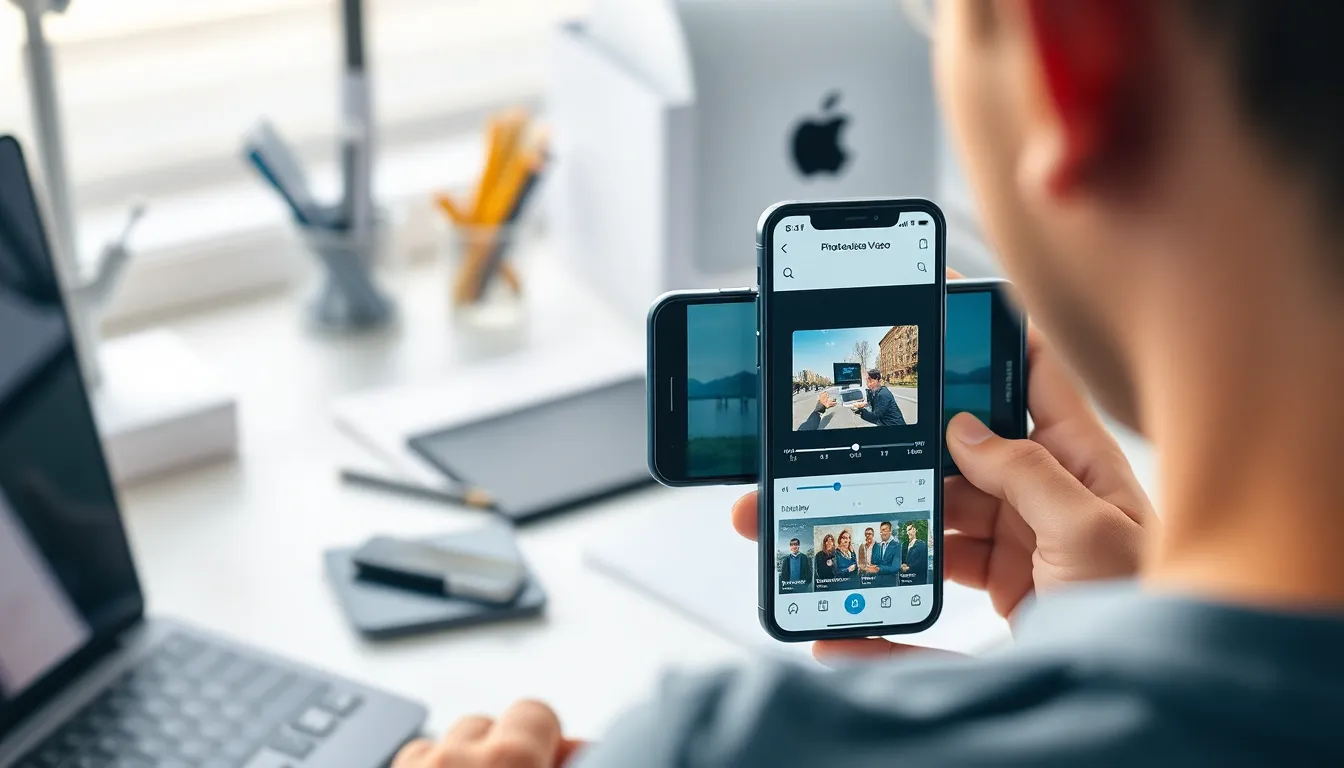
iPhones come equipped with intuitive video editing tools that streamline the editing process. Users can efficiently cut and trim videos using the built-in features.
Photos App Features
The Photos app offers an easy way to edit videos. Users can access the video they want to cut and tap “Edit” to enter editing mode. Trimming occurs by dragging the handles on either end of the timeline. This simple interface allows adjustments to the video’s length without losing quality. After trimming, it’s crucial to save changes to keep the edited version. The Photos app also provides options for adding filters and enhancing video quality post-edit.
iMovie App Overview
iMovie delivers a more advanced editing experience on iPhones. This app supports a variety of editing features beyond simple cutting. Users can create projects, add transitions, and incorporate soundtracks into their videos. The timeline view helps users visualize edits better, making the process more efficient. Unique to iMovie, users can adjust video speed and add text overlays for enhanced storytelling. Exporting finished projects in various formats ensures compatibility across platforms.
Third-Party Video Cutting Apps
Many users seek additional tools for video cutting beyond the built-in options on iPhones. Third-party apps can offer unique features that enhance the editing process and provide a more robust experience.
Recommended Apps
iMovie and InShot rank among the most popular video cutting apps available. iMovie provides robust editing capabilities, including theme options, transitions, and soundtracks. InShot, known for its straightforward interface, excels in adding filters and effects. Other notable apps include Trim and Quik, which specialize in quick edits and automatic video enhancements.
Comparison of Features
iMovie supports advanced options like split-screen editing, while InShot focuses on user-friendly features for beginners. Trim emphasizes minimalism and speed, making it perfect for quick cuts. Quik offers smart editing capabilities that analyze footage and suggest edits. Each app caters to different editing needs, from beginners to seasoned editors, providing a variety of solutions for video cutting on iPhones.
Step-by-Step Guide: How Do You Cut Videos on iPhone
Cutting videos on an iPhone is straightforward, thanks to built-in tools like the Photos app and third-party apps like iMovie. Here’s how to use each option effectively.
Using the Photos App
Start by opening the Photos app and locating the video to edit. Tap on the video and select “Edit” in the top right corner. Drag the yellow handles on either end of the timeline to trim the desired sections. Users can preview changes by tapping the play button. Adjustments require a few taps, ensuring efficiency and precision. Once satisfied, select “Done” to save the trimmed video. The original footage remains intact, allowing users to revert to it anytime.
Using iMovie
iMovie enhances the video editing experience on iPhones. Launch the app and create a new project by tapping the “+” icon. Users can import the video by selecting “Movie” and choosing footage from the library. The app’s timeline makes it easy to trim clips. Tap on the video in the timeline, then drag the edges to the preferred length. Options for adding transitions, text, and soundtracks exist, allowing for further customization. When editing is complete, tap “Done” to save and export the video in various formats, perfect for sharing across platforms.
Tips for Efficient Video Cutting
Using the built-in Photos app simplifies the video cutting process. Users should ensure their videos are well-lit and in high resolution for best results. Accessing the timeline requires tapping “Edit,” then moving yellow handles for precise trimming.
Consider planning cuts before starting the editing process. Identifying key moments within the video can save time during editing and help maintain a cohesive narrative. Each frame chosen impacts the overall storytelling.
When employing third-party apps like iMovie or InShot, exploring their features maximizes efficiency. iMovie offers tools for adding transitions and soundtracks, allowing for detailed project editing. InShot provides easy-to-use features that support quick edits for beginners.
Experimenting with different apps can provide insights into which features best suit individual needs. Users may benefit from utilizing the timeline in iMovie for a visual representation of edits. Maintaining organization of video files and projects encourages a smoother editing experience.
After completing cuts, saving in various formats enhances compatibility across platforms. Users should also keep the original files intact to avoid losing quality. A methodical approach to editing can turn simple clips into engaging stories.
Cutting videos on an iPhone is not just about trimming clips; it’s about enhancing storytelling and creating engaging content. With the built-in Photos app and powerful third-party tools like iMovie and InShot, users have access to a range of editing options that cater to different skill levels.
By mastering these tools and techniques, anyone can elevate their video editing game. Whether it’s for personal memories or professional projects, taking the time to edit can make all the difference. Embracing creativity and experimenting with various features will lead to polished results that captivate viewers.


